

 Documentation
 Instrumentation
 Guides
 API Reference
 Changelog
- How many times a user gets frustrated
- How many times an agent uses a tool wrong
- How many times an agent incorrectly cancels a reservation
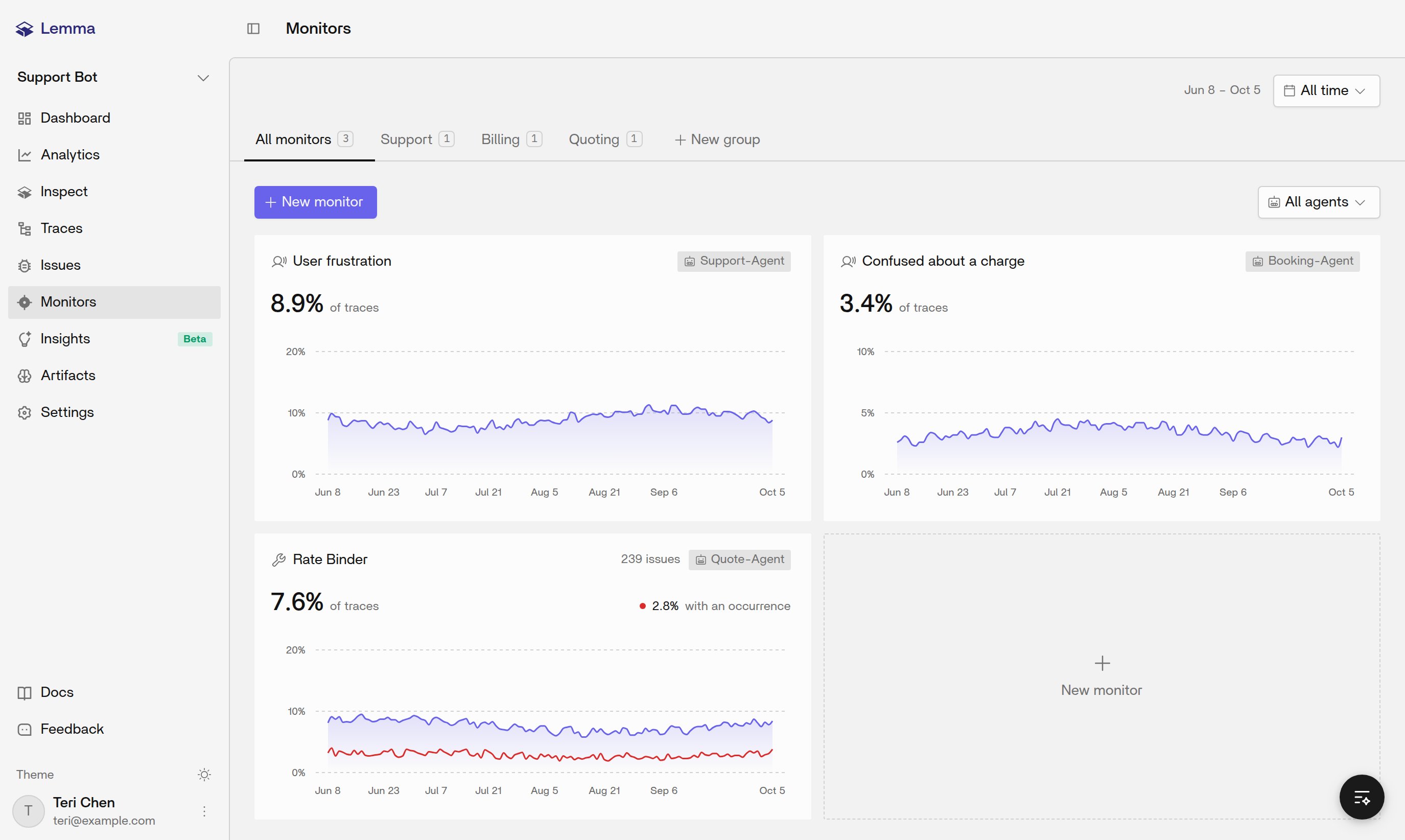
Signal or behavior
You choose the kind when you create the monitor. It does not change later. Pick the kind by what you want back:- Signal: records when an event occurs, with no issues. User frustration is a signal.
- Behavior: records when a behavior is wrong and writes an issue. A wrong tool call or cancellation is a behavior.
- Template: one monitor for each starter you pick
Create a monitor
New monitor asks for these, in order:- Agent to watch. Pick an agent for this monitor to judge. You can’t change it later. Lemma does not judge a trace that has no agent name.
- Kind. Choose Signal, Behavior, or Template.
- Name. This is the label on the card. Lemma does not look for a tool call with that name.
- Scenario, on a behavior monitor. Describe what the agent should do.
- Good: “A guest asks for their booking details. The agent looks up that booking, and no other.”
- Bad: “Use reservation tools correctly.”
Percent and count
Each matching trace updates the count. The chart draws one point per day.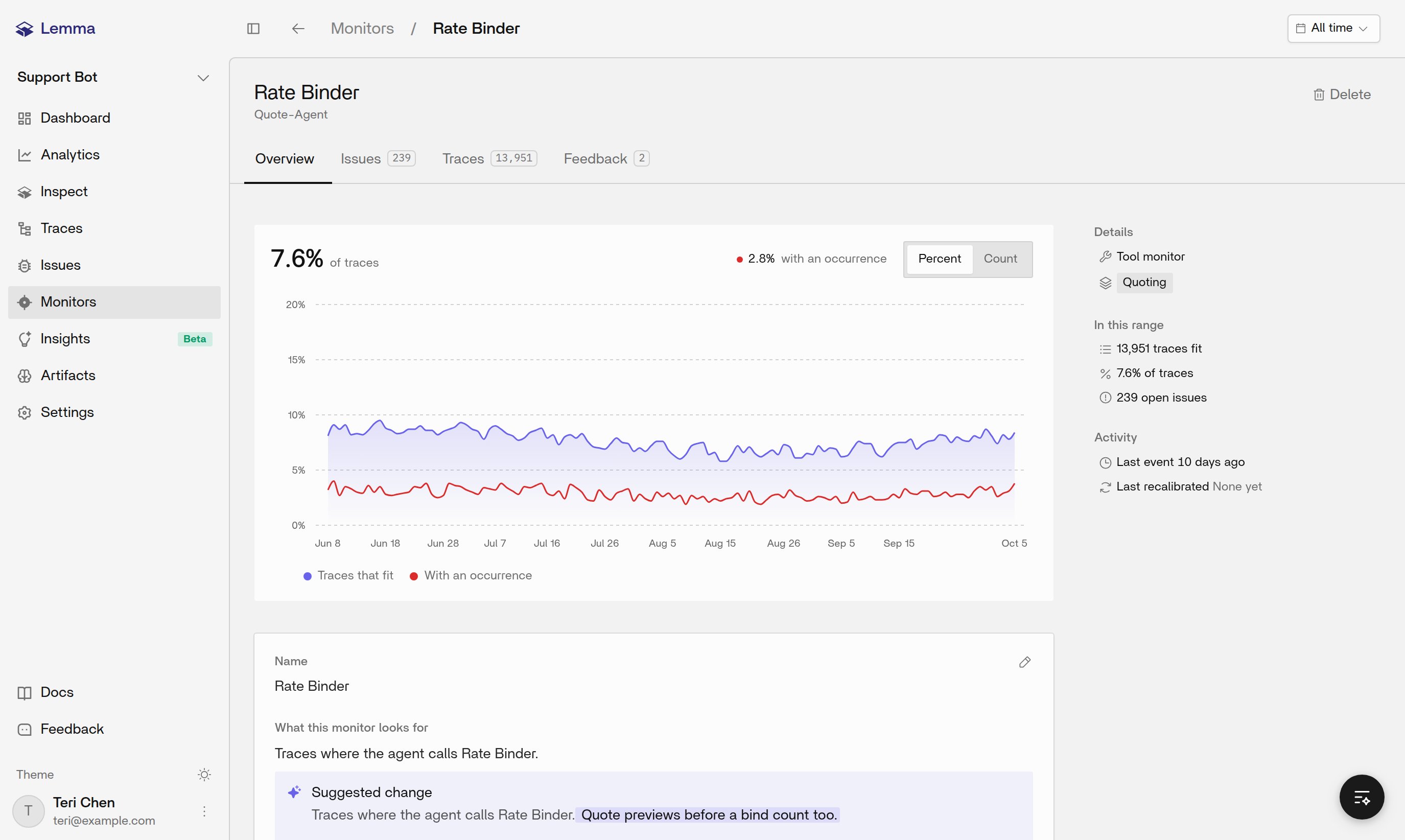
When a trace is wrong
Tell Lemma when a trace is wrong. The chart and trace list update from the correction. Doesn’t fit and Mark incorrect mean this trace should not count. Add to monitor means it should, including a trace the monitor has not judged. You can add a short reason. On Traces and Issues, you can mark several rows at once. Undo, or Restore on Feedback, returns the trace to the monitor’s own judgment. Select Recalibrate to teach the monitor from that feedback for later traces. Lemma also recalibrates every night. The correction rules, learning window, and recalibrate rules are in the monitor contract.Groups
All monitors lists every monitor in the project. New group adds a tab you name, and a monitor can belong to more than one group. Existing appears only inside a group, and adds monitors you already have. Right-click a group to rename it, add monitors, or delete it. Deleting a group leaves its monitors running. Everyone in the project sees the same groups and the same card order. Card order, creating on an open group tab, and the side rail are in the monitor contract.From the API
REST and the Lemma Model Context Protocol (MCP) server share the reads. You create a monitor, change it, record feedback, and recalibrate on REST. What those calls change is in the monitor contract. Request shapes are in the API Reference.Related pages
Issues
Failures Lemma groups on its own, and how alerting follows them.
Traces
The executions a monitor can judge.
Concepts
How a project, an agent, and a trace fit together.
Lemma MCP server
Read monitors from a coding agent. Writes stay on REST.