> ## Documentation Index
> Fetch the complete documentation index at: https://docs.uselemma.ai/llms.txt
> Use this file to discover all available pages before exploring further.
# Turning issues into fixes
> Triage a production issue, inspect the evidence, ship a change, and confirm it does not recur
Lemma groups repeated [trace](/platform/concepts#trace) evidence into an [issue](/platform/concepts#issue). This how-to takes that finding to a code change you can prove. Triage first. Then find the mechanism. Then change the code and verify. Do not start a patch until you can point at the supporting traces that show the defect.
You need a project with [ready traces](/platform/traces) and at least one issue. [Inspect](/platform/inspect) and a coding agent on the [Lemma Model Context Protocol (MCP) server](/connections/mcp) are optional.
Start from the Issues table in the Lemma dashboard.
On an issue page, ask why it fired and how to fix it.
Lemma’s detection is probabilistic. An issue title is a hypothesis backed by traces, not a confirmed bug. Open the evidence before you treat the title as ground truth. See [Issues](/platform/issues) and [Product boundaries](/platform/concepts#product-boundaries).
## Workflow
Decide whether the finding is a real defect. Do not write code in this step.
Start from an open issue in the Issues table, a [Slack](/connections/slack) alert, or an Issue Brief.
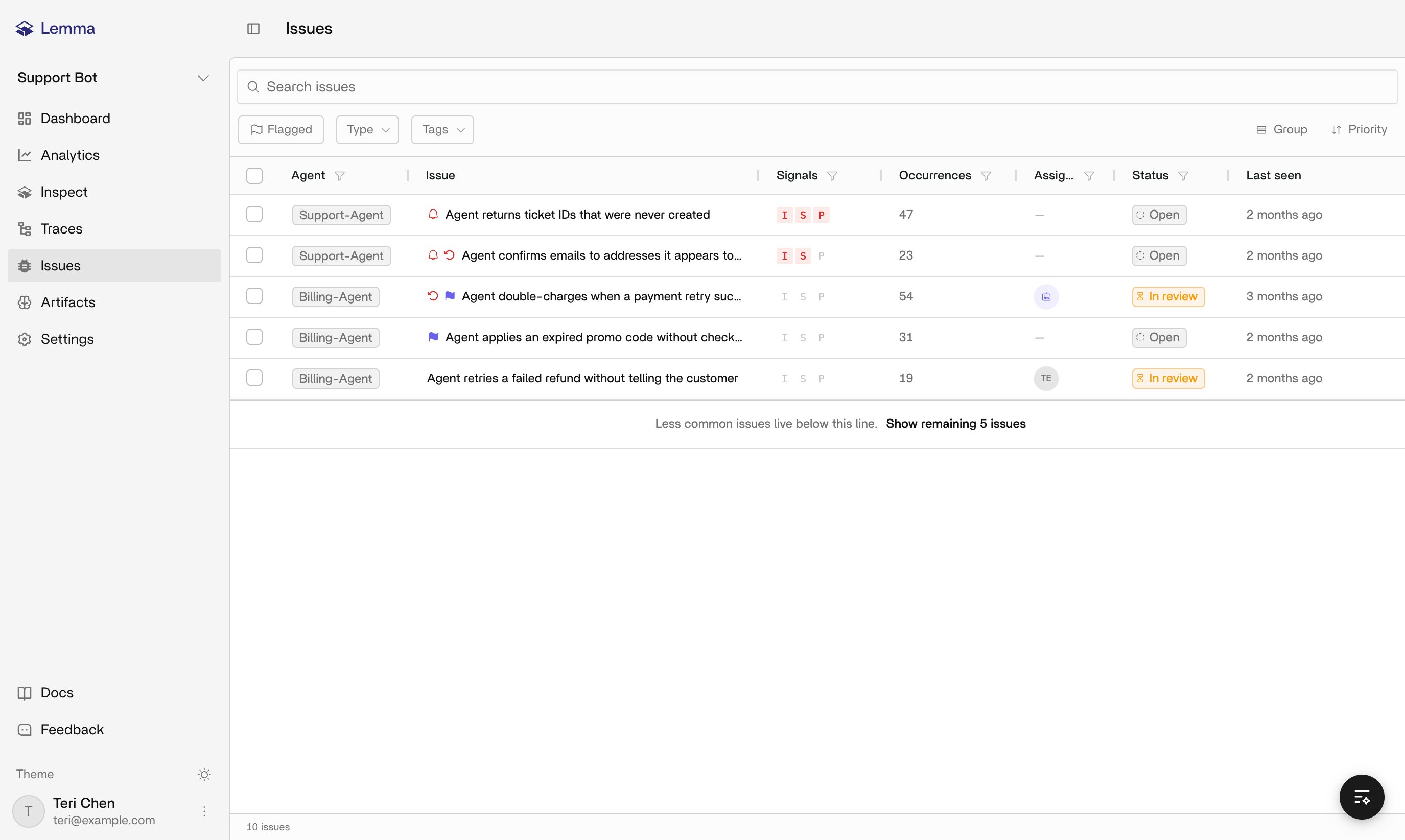 Do the following:
1. Open **Issues** in the project in the [Lemma dashboard](https://platform.uselemma.ai).
2. Filter by status, agent, assignee, or search if you are choosing what to work next.
3. Open the issue and read why Lemma flagged it: rationale, category, priority, first seen, last seen, and supporting-trace count.
4. Dismiss it, or accept it and work it.
The issue is `dismissed` with a reason, or `in_progress` because you accepted it as a defect.
Assignment inside Lemma does not create a Linear ticket. Create that link later only if your team files tickets. See [Linear](/connections/linear). Dismiss when the behavior is working as intended, synthetic traffic, or a false grouping. Do not dismiss a real defect because you plan to fix it. That status is `resolved` after the change ships.
Start from the runs Lemma grouped, not from the issue title.
You need an accepted issue with at least one supporting trace.
Do the following:
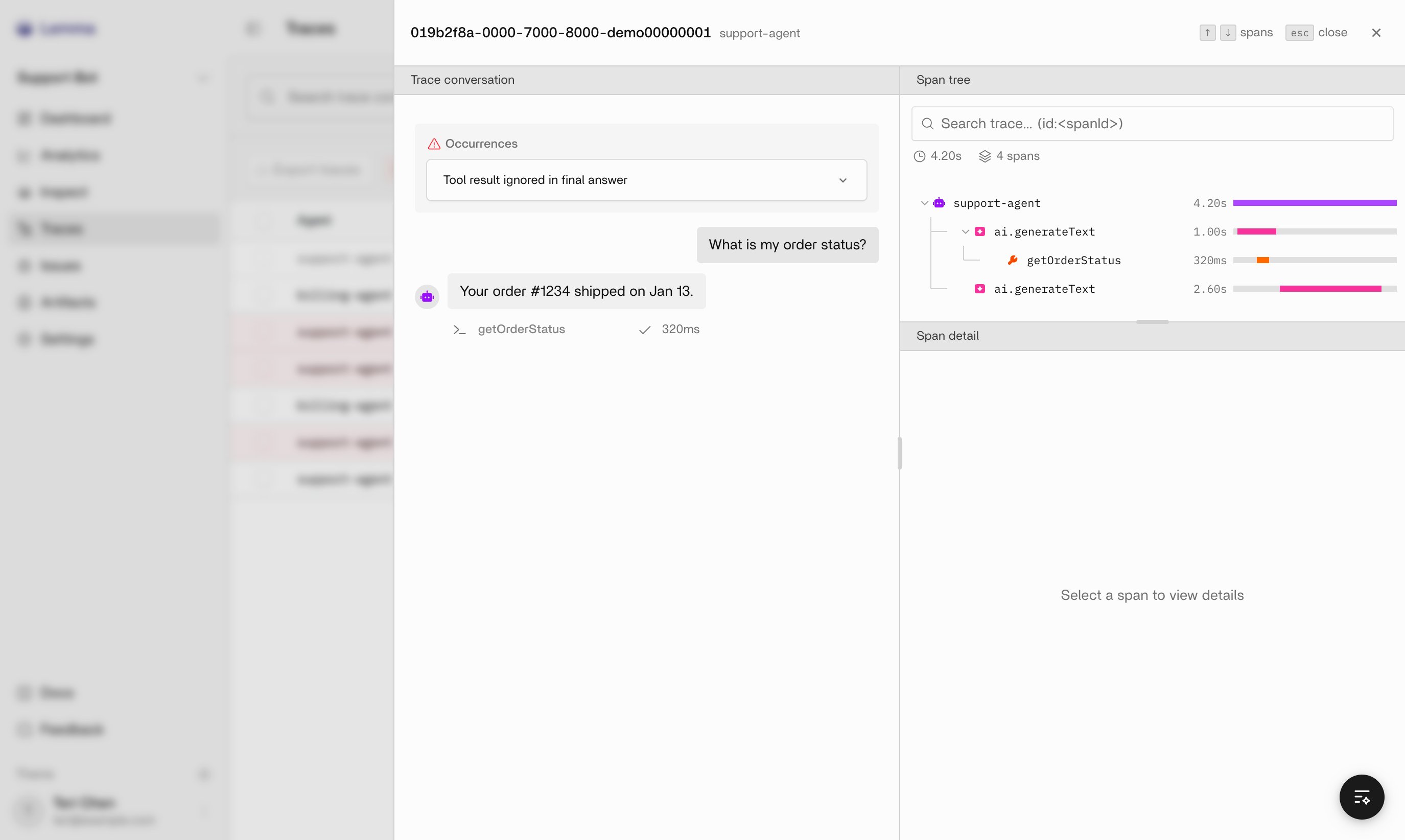
1. Open more than one supporting trace from the issue, not only the newest one.
2. Read **Conversation** for what the person using the agent saw.
3. Read **Execution tree** for which generation, tool call, or [span](/tracing/instrumentation/concepts#span) produced that outcome.
4. Compare the assistant text to the tool results and span outputs in the same run. A mismatch between those two panels is the defect.
Do the following:
1. Open **Issues** in the project in the [Lemma dashboard](https://platform.uselemma.ai).
2. Filter by status, agent, assignee, or search if you are choosing what to work next.
3. Open the issue and read why Lemma flagged it: rationale, category, priority, first seen, last seen, and supporting-trace count.
4. Dismiss it, or accept it and work it.
The issue is `dismissed` with a reason, or `in_progress` because you accepted it as a defect.
Assignment inside Lemma does not create a Linear ticket. Create that link later only if your team files tickets. See [Linear](/connections/linear). Dismiss when the behavior is working as intended, synthetic traffic, or a false grouping. Do not dismiss a real defect because you plan to fix it. That status is `resolved` after the change ships.
Start from the runs Lemma grouped, not from the issue title.
You need an accepted issue with at least one supporting trace.
Do the following:
1. Open more than one supporting trace from the issue, not only the newest one.
2. Read **Conversation** for what the person using the agent saw.
3. Read **Execution tree** for which generation, tool call, or [span](/tracing/instrumentation/concepts#span) produced that outcome.
4. Compare the assistant text to the tool results and span outputs in the same run. A mismatch between those two panels is the defect.
 Why did this issue fire, which scenarios triggered it, and what do the supporting traces share? How should I fix the underlying defect?
Export the issue as markdown (`GET /issues/{id}/markdown`, or the UI equivalent). Or connect a coding agent to the [Lemma MCP server](/connections/mcp) and pull the same evidence in the editor.
Use the Lemma MCP to inspect this issue. Cite the supporting traces, name the failing span, and do not propose a patch until you can describe the mechanism.
You can say: in these traces, span X did Y, and the visible result was Z. If the traces do not support the title, return to triage and dismiss with that evidence.
Find the mechanism. Do not restate the issue title.
Use the span-level mismatch from the previous step.
Do the following:
1. Map the failing span to a function, prompt, tool wrapper, or policy in your repo. Use the span name, tool name, and timestamps on the execution tree.
2. Decide where the fix belongs: prompt or policy, tool or retrieval code, or a guard after the model responds. One defect can need more than one of those layers.
3. Write the intended change in one sentence: “When `lookup_order` returns `processing`, the assistant must not claim the order shipped.”
You have a named code path and a claim you can falsify. If you cannot name the path, keep inspecting traces.
Inspect can propose a fix. Treat that proposal as a draft against the traces. Do not skip the execution tree.
Use your team’s development workflow. Lemma does not apply the patch.
Use the one-sentence claim from the previous step, plus the exported issue or MCP evidence.
Do the following:
1. Make the smallest change that addresses the mechanism in those traces.
2. Keep the original user prompt, tool arguments, and tool result from a supporting trace as the fixture you will replay.
3. If your team files tickets, [create or link a Linear ticket](/connections/linear) from the issue. Connecting Linear never files one on its own.
Point the agent at the issue markdown or the Lemma MCP tools. Require it to cite the supporting traces in the pull request.
Pull this Lemma issue from the MCP. Make the smallest change that addresses the failure mechanism in the supporting traces. Open a pull request that links the issue id and quotes the cited span evidence.
You have a reviewable change. Its description links the Lemma issue and quotes the evidence. Set the issue to `in_progress` if it is not already.
Do not resolve the issue because a pull request exists. Resolve after you verify.
A passing unit test is not enough. Replay the scenario the traces recorded.
Use the fixture from a supporting trace (user message, tool arguments, tool result) and a build that includes your change.
Do the following:
1. Replay the same user turn against the same tool result, in staging or a local harness.
2. Confirm the new conversation no longer produces the bad assistant text.
3. Confirm the execution tree still records the tool or span you relied on. A “fix” that skips the lookup hides the defect.
4. Send that run to Lemma and open the new [ready trace](/platform/traces).
5. Confirm Lemma does not group the new run into the same issue.
You have at least one new ready trace for the same scenario that does not match the original failure. If it still matches, the mechanism is not fixed. Return to naming the root cause.
Resolve only after production, or a production-like replay, stops reproducing the pattern.
You have a verified change, shipped or ready to ship, and the original issue.
Do the following:
1. Ship through your usual release path.
2. Keep the issue `in_progress` until new production traces for that agent and scenario do not match the original failure.
3. Resolve the issue and note the fix, including a pull request link when you have one.
4. Watch the issue. Matching evidence can reopen a `resolved` issue. It never reopens a `dismissed` one.
5. If it reopens, treat that as failed verification. Inspect the new supporting traces.
The issue is `resolved`, or it reopened and you are investigating again with fresh traces. Slack and [webhooks](/connections/webhooks) follow this lifecycle (`issue.resolved`, `issue.reopened`). Recurrence does not create a new Linear ticket.
Dismiss and resolve are different terminal states. Dismiss means the finding is not a real problem. Resolve means the defect is fixed. Pick resolve after a verified change.
## Worked example: shipped claim on a processing order
This example uses the `support-agent` from [Building high-quality traces](/guides/building-high-quality-traces). Substitute your agent name and tool names.
Issue: “Agent tells the customer an order shipped while `lookup_order` still returns processing.”
You open 3 of 12 supporting traces. Each customer asks “Where is my order #1843?” **Conversation** shows “It shipped yesterday and arrives Friday.” **Execution tree** shows `lookup_order` returning `{ "status": "processing" }` with no tracking number. The generation ran after that tool result. The defect is the answer ignoring the tool output, not a failed HTTP call.
Add a rule: if `lookup_order.status` is not `shipped`, the assistant reports the current status and does not name a ship date or tracking number. A post-generation check can reject a “shipped” claim when the last lookup disagrees, then retry or fall back to a template. The pull request quotes `{ "status": "processing" }` next to the invented “shipped yesterday” line.
Replay “Where is my order #1843?” with `lookup_order` stubbed to `processing`. The new conversation says the order is still processing. The execution tree still includes `lookup_order`. The new ready trace does not join the original issue. After that build is in production, you resolve with the pull request link. If a later trace claims shipped against a `processing` lookup, the issue reopens. Inspect that new tree.
## Related pages
Status, priority, and how to open supporting traces.
Conversation and execution-tree views for one run.
Ask why an issue fired and how to fix it.
Pull the same evidence into a coding agent.
Create or link a ticket after you accept the issue.
The trace shape this investigation depends on.
Why did this issue fire, which scenarios triggered it, and what do the supporting traces share? How should I fix the underlying defect?
Export the issue as markdown (`GET /issues/{id}/markdown`, or the UI equivalent). Or connect a coding agent to the [Lemma MCP server](/connections/mcp) and pull the same evidence in the editor.
Use the Lemma MCP to inspect this issue. Cite the supporting traces, name the failing span, and do not propose a patch until you can describe the mechanism.
You can say: in these traces, span X did Y, and the visible result was Z. If the traces do not support the title, return to triage and dismiss with that evidence.
Find the mechanism. Do not restate the issue title.
Use the span-level mismatch from the previous step.
Do the following:
1. Map the failing span to a function, prompt, tool wrapper, or policy in your repo. Use the span name, tool name, and timestamps on the execution tree.
2. Decide where the fix belongs: prompt or policy, tool or retrieval code, or a guard after the model responds. One defect can need more than one of those layers.
3. Write the intended change in one sentence: “When `lookup_order` returns `processing`, the assistant must not claim the order shipped.”
You have a named code path and a claim you can falsify. If you cannot name the path, keep inspecting traces.
Inspect can propose a fix. Treat that proposal as a draft against the traces. Do not skip the execution tree.
Use your team’s development workflow. Lemma does not apply the patch.
Use the one-sentence claim from the previous step, plus the exported issue or MCP evidence.
Do the following:
1. Make the smallest change that addresses the mechanism in those traces.
2. Keep the original user prompt, tool arguments, and tool result from a supporting trace as the fixture you will replay.
3. If your team files tickets, [create or link a Linear ticket](/connections/linear) from the issue. Connecting Linear never files one on its own.
Point the agent at the issue markdown or the Lemma MCP tools. Require it to cite the supporting traces in the pull request.
Pull this Lemma issue from the MCP. Make the smallest change that addresses the failure mechanism in the supporting traces. Open a pull request that links the issue id and quotes the cited span evidence.
You have a reviewable change. Its description links the Lemma issue and quotes the evidence. Set the issue to `in_progress` if it is not already.
Do not resolve the issue because a pull request exists. Resolve after you verify.
A passing unit test is not enough. Replay the scenario the traces recorded.
Use the fixture from a supporting trace (user message, tool arguments, tool result) and a build that includes your change.
Do the following:
1. Replay the same user turn against the same tool result, in staging or a local harness.
2. Confirm the new conversation no longer produces the bad assistant text.
3. Confirm the execution tree still records the tool or span you relied on. A “fix” that skips the lookup hides the defect.
4. Send that run to Lemma and open the new [ready trace](/platform/traces).
5. Confirm Lemma does not group the new run into the same issue.
You have at least one new ready trace for the same scenario that does not match the original failure. If it still matches, the mechanism is not fixed. Return to naming the root cause.
Resolve only after production, or a production-like replay, stops reproducing the pattern.
You have a verified change, shipped or ready to ship, and the original issue.
Do the following:
1. Ship through your usual release path.
2. Keep the issue `in_progress` until new production traces for that agent and scenario do not match the original failure.
3. Resolve the issue and note the fix, including a pull request link when you have one.
4. Watch the issue. Matching evidence can reopen a `resolved` issue. It never reopens a `dismissed` one.
5. If it reopens, treat that as failed verification. Inspect the new supporting traces.
The issue is `resolved`, or it reopened and you are investigating again with fresh traces. Slack and [webhooks](/connections/webhooks) follow this lifecycle (`issue.resolved`, `issue.reopened`). Recurrence does not create a new Linear ticket.
Dismiss and resolve are different terminal states. Dismiss means the finding is not a real problem. Resolve means the defect is fixed. Pick resolve after a verified change.
## Worked example: shipped claim on a processing order
This example uses the `support-agent` from [Building high-quality traces](/guides/building-high-quality-traces). Substitute your agent name and tool names.
Issue: “Agent tells the customer an order shipped while `lookup_order` still returns processing.”
You open 3 of 12 supporting traces. Each customer asks “Where is my order #1843?” **Conversation** shows “It shipped yesterday and arrives Friday.” **Execution tree** shows `lookup_order` returning `{ "status": "processing" }` with no tracking number. The generation ran after that tool result. The defect is the answer ignoring the tool output, not a failed HTTP call.
Add a rule: if `lookup_order.status` is not `shipped`, the assistant reports the current status and does not name a ship date or tracking number. A post-generation check can reject a “shipped” claim when the last lookup disagrees, then retry or fall back to a template. The pull request quotes `{ "status": "processing" }` next to the invented “shipped yesterday” line.
Replay “Where is my order #1843?” with `lookup_order` stubbed to `processing`. The new conversation says the order is still processing. The execution tree still includes `lookup_order`. The new ready trace does not join the original issue. After that build is in production, you resolve with the pull request link. If a later trace claims shipped against a `processing` lookup, the issue reopens. Inspect that new tree.
## Related pages
Status, priority, and how to open supporting traces.
Conversation and execution-tree views for one run.
Ask why an issue fired and how to fix it.
Pull the same evidence into a coding agent.
Create or link a ticket after you accept the issue.
The trace shape this investigation depends on.